
Choose the exact Hasli release and Android package for your phone, back up any existing LMC settings, and install the APK through Android’s installer. An XML config is optional; establish that the app opens before importing one.
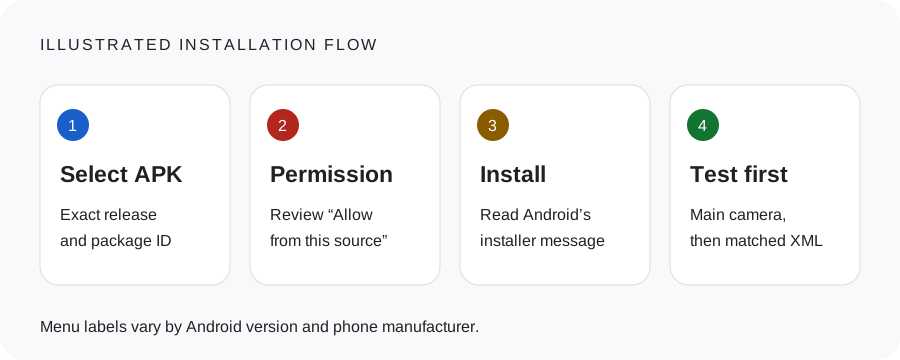
Before you install
Read the device evidence and package guide. Match your exact model, chipset and firmware. A phone listed in a community XML index is a starting point for testing, not a compatibility certificate.
Use the exact file identified on its release page. The owner-provided APK is available separately, with package com.lmc84.app and version 1.0.0; its Hasli release is unverified. Matching destinations for the source-listed Hasli variants are still unconfigured. Read the identity beside the link before installing.
Install step by step
- Export your current settings before an update. Keep the XML backup outside the app’s private data directory.
- Select one release and package. After its destination is configured, click Get download link, wait for the displayed delay, then click Download APK.
- Open the downloaded APK in the file manager or browser. If Android prompts, allow that particular source app to install unknown apps. Labels vary by manufacturer; Pixel uses Apps → Special app access → Install unknown apps.
- Read the Android installer’s app identity and warnings, then install if you trust the source. Do not disable device protection to force an installation.
- Open LMC and grant camera access. Microphone access is relevant for video audio. File or media access depends on the Android version and the task you are performing.
- Test the main rear camera first. Save a daytime photo, reopen it from the gallery, then test selfie, other lenses and video separately. Import a matched XML only after this baseline works.
Updating or trying a second package
Android identifies an app by its package ID. A different ID may coexist with an existing LMC installation. The same ID with an incompatible signing key can produce an installation conflict. Back up settings before removing an existing app; uninstalling can erase its app data.
Check free space, a complete file download and the exact release requirements before troubleshooting an installer failure. The owner-provided APK has inspected manifest metadata, shown beside its download. Manifest and signing details have not been inspected for every source-listed Hasli file, so the owner file’s Android requirement must not be applied to the whole catalog.
After installation
Revoke the source app’s install permission when it is no longer needed. Keep a record of the APK filename, package ID, Android version and imported XML. If the app fails at startup, follow the crash diagnosis before adding more settings.
Make the next step easy to verify
Keep the backup outside app data
Export settings, copy the XML to a separate place and record the package ID. Uninstalling an app can remove app data; a settings backup is more useful than remembering a short release number.
Use the actual installer message
An incomplete file, unsupported build, insufficient space and a signing conflict need different checks. Re-download the exact authorized artifact when a file is incomplete; do not rename an incompatible package to make it appear to match.
Capture and reopen one photo
Confirm the unconfigured main camera saves a usable file and that the gallery can open it. Only then test selfie, auxiliary cameras and a matched XML. This sequence tells you which change introduced a problem.
Do you need to remove the old app?
Not automatically. Different package IDs can sometimes coexist. The same ID may update the existing app, or fail if signing requirements do not match. Read the Android message and keep the old APK/XML details before changing anything. This project has not inspected the signing certificate of the source binaries.
Keep a simple setup record
Save these details with your backup. They make it possible to repeat a working setup or describe a problem accurately.
________________________
________________________
________________________
________________________
________________________
________________________
Copy this checklist into your own notes. This page does not submit or save your device information.