
For X3 Pro, the hehehaw profile has an explicit contributor report about working cameras; verify that report against your firmware.
LMC 8.4 for Poco: Device Evidence & XML Configs
LMC 8.4 for Poco: separate X, Pro and GT models
Poco has useful model-specific community files, but close names are easy to confuse. X3 Pro is separate from X3 NFC; X4 Pro is separate from X4 GT; X5 Pro is separate from X5; X6 Pro is separate from X6. Some source headings deliberately group equivalent market names, such as F3/Mi 11X/Redmi K40 and F4/Redmi K40S. Follow the explicit heading rather than extending that grouping to GT or Pro variants.
For F4, BubNois v2 has a fuller read-me that requires R17 and recommends leaving AWB, PRO and Leica off.
For X6 Pro, choose between the exact-model profile and the leica-superb color-style option using the same skin, foliage and white-object test scene.
Package and firmware guidance
The selected Poco entries do not establish a brand-wide package recommendation. Do not choose snapcam solely because a phone is listed on this page.
An X5-named file appearing under an X5 Pro heading is held back from recommendations here. The F6 Peridot-named profile has limited instructions, so begin with the main camera and document the APK/firmware combination before exploring other modes.
Can I use F3 or F4 settings on the GT version?
The catalog's F3/Mi 11X/K40 and F4/K40S groupings do not establish F3 GT or F4 GT support.
Does a Leica or iPhone color config change the camera hardware?
These are community processing styles. Choose them by their visible output and retain a standard profile for comparison.
Source notes: Hasli LMC8.4 R16+ community config index ↗ Hasli LMC8.4 R15 community config index ↗ BubNois GCam F4 Config v2 contributor post ↗
Read the model-specific community evidence for Poco. A successful setup on another regional variant, ROM or Android version may not transfer to your phone.
Choose an exact match
Use your device’s model code and chipset where the source distinguishes variants. The entries below retain release assignments, package recommendations and unresolved details. No model in this guide was tested by us.
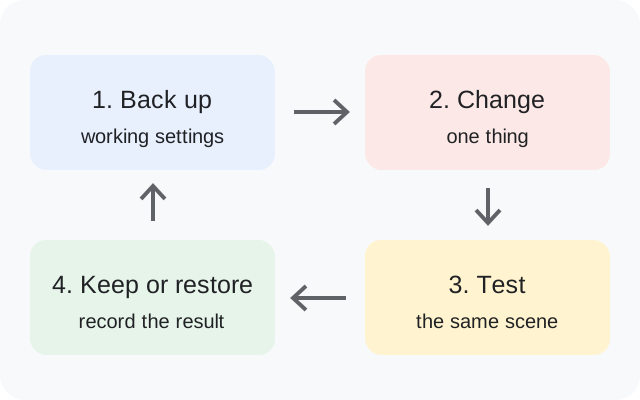
Try defaults first, export working settings, then import a sourced XML. Follow the installation guide and XML setup. Select the documented package rather than guessing from the phone brand.
8 matching devices. Community evidence; check the variant details.
Community XML referenceFounder-reported APK testing
Poco X3 Pro
Start here
Use hehehaw.xml as the first candidate if you want to verify the source's explicit camera report. Keep X3 Pro separate from the X3 NFC profile.
Choosing the configThe all-camera report is a reason to test hehehaw early, not a promise for every firmware. Compare RHqDR as a second profile once you know which saved camera modes work.
Model-specific setup checks
Check the native-resolution report
Save a photo from each exposed camera and inspect its pixel dimensions. Note which lenses work on your firmware instead of repeating the source's all-camera claim as your own result.
Keep X3 NFC out of the import list
The index provides separate RHqDR filenames for X3 Pro and X3 NFC. Read the suffix before importing, particularly when both files are downloaded together.
Compare noise and detail after capture
Use a shaded textured subject, then view both profiles at the same size. Judge the saved detail and noise after processing completes, with optional upscaling left out of the initial comparison.
Test in this order
- Load hehehaw and save main/front photos.
- Check every exposed rear control and note saved pixel dimensions.
- Compare the X3 Pro-specific RHqDR file only if you need a different result.
Keep separate: Poco X3 NFC; Poco X3 without matching evidence
Has the X3 Pro all-camera claim been tested here?
No. The source describes hehehaw that way; the checklist asks you to verify saved photos on your own APK and firmware.
Profile source / instructions ↗ Profile source / instructions ↗
Variant limits and source evidence (3)
The source describes hehehaw as stable with all cameras at native resolution, but this is a community report, not our test. Keep X3 Pro separate from X3 NFC.
LMC8.4r18_RHqDR5.0-base_x3pro.xml
Release: R16+ index; exact release unconfirmed
Package: No verified package recommendation
Author: Not attributed in index
hehehaw.xml
Release: R16+ index; exact release unconfirmed
Package: No verified package recommendation
Author: Not attributed in index
LMC-Px3P-v13W.xml
Release: R15 index; exact release unconfirmed
Package: No verified package recommendation
Author: Not attributed in index
Community XML referenceFounder-reported APK testing
Poco X4 Pro
Start here
Confirm X4 Pro 5G. Begin with Poco-X4Pro-5G.xml as a plainly model-identified current candidate, then compare Blaze3.0 separately if needed.
Choosing the configThe current candidates provide an exact X4 Pro target, but Blaze's r18f1 filename label is not by itself an independently documented release test.
Model-specific setup checks
Read Pro versus GT before choosing
X4 GT has separate community instructions. Do not carry its camera or HDR-mode advice into an X4 Pro setup merely because both names begin X4.
Preserve the older grouping accurately
The older shared heading is X4 Pro 5G/Redmi Note 11 Pro 5G. It does not establish files for every Redmi Note 11 variant.
Compare profile revisions with a moving subject
After a still reference works, include a simple everyday movement test. Check the saved sharpness and capture reliability rather than selecting by the number in the filename.
Test in this order
- Verify X4 Pro 5G and save a static daylight reference.
- Import the model-named current file and check front/auxiliary controls.
- Compare Blaze3.0 on the same static scene, then try a simple moving subject.
Keep separate: Poco X4 GT; Redmi Note 11 Pro variants outside the source's explicit 5G grouping
Profile source / instructions ↗ Profile source / instructions ↗
Variant limits and source evidence (3)
The older index groups X4 Pro 5G with Redmi Note 11 Pro 5G. Do not confuse X4 Pro with X4 GT; release labels within filenames are not proof that every ROM works.
Blaze3.0-lmc8.4r18f1-pocoX4Pro.xml
Release: R16+ index; exact release unconfirmed
Package: No verified package recommendation
Author: Not attributed in index
Poco-X4Pro-5G.xml
Release: R16+ index; exact release unconfirmed
Package: No verified package recommendation
Author: Not attributed in index
POCO-X4-PRO-5G.xml
Release: R15 index; exact release unconfirmed
Package: No verified package recommendation
Author: Not attributed in index
Community XML referenceFounder-reported APK testing
Poco X5 Pro
Start here
Confirm X5 Pro rather than X5, then try sanji22.xml. Preserve your working settings before comparing DevilNoobIN.
Choosing the configNeither selected file carries a documented package or exact tested release in the index. The recommendation is a model-heading shortlist, not a quality ranking.
Model-specific setup checks
Hold back the mismatched X5 file
A filename that says X5 5G under an X5 Pro heading is ambiguous. Use the unambiguous selected entries instead of silently assigning it Pro compatibility.
Choose by a repeatable portrait and detail test
Use the same face, fabric and lighting with sanji22 and DevilNoobIN. Compare skin color, sharpening and focus in saved files rather than their contributor names.
Record the package when a lens is missing
The source does not supply a package rule for these files. Keep the actual package and firmware with a missing-lens report before deciding that a different XML alone will fix it.
Test in this order
- Save a default main-camera scene on the exact X5 Pro.
- Import sanji22 and check front/exposed auxiliary capture.
- Compare DevilNoobIN only after saving the working baseline.
Keep separate: Poco X5
Variant limits and source evidence (2)
The current index also has a Poco-X5-5G.xml filename under X5 Pro. That ambiguous file is deliberately not recommended here. Distinguish X5 Pro from X5; package and exact tested release are not documented for the chosen files.
sanji22.xml
Release: R16+ index; exact release unconfirmed
Package: No verified package recommendation
Author: Not attributed in index
DevilNoobIN-3.0_LMC.xml
Release: R16+ index; exact release unconfirmed
Package: No verified package recommendation
Author: Not attributed in index
Community XML referenceFounder-reported APK testing
Poco X6 Pro
Start here
Start with poco_x6_pro_lmc_8.4_r18_v1.xml as the model-specific reference. Compare leica-superb separately if you prefer its described restrained color style.
Choosing the configThe exact-model file is the straightforward target match. Leica-superb is a look option supported by a source description, not an official Leica/iPhone profile or a hardware upgrade.
Model-specific setup checks
Compare skin and neutral color together
Use a face with a white or gray object to compare the two profiles. A vivid display or green landscape alone can conceal color casts in a natural-color choice.
Do not import X6/Note 13 Pro 5G settings by similarity
Those models have a separate grouped source heading. Keep X6 Pro in the filename and finder selection.
Do not treat r18_v1 as a universal test
The exact-model filename includes r18, but the index does not independently state the release assignment. Keep the actual working APK release with your saved profile.
Test in this order
- Confirm X6 Pro and save a main-camera reference.
- Compare exact-model and leica-superb output on the same face/neutral scene.
- Check front and exposed auxiliary captures before choosing an everyday setup.
Keep separate: Poco X6; Redmi Note 13 Pro 5G
What is the iPhone color config for Poco X6 Pro?
The source describes leica-superb.xml as natural color similar to an iPhone-style look. Treat it as a community processing option and compare its actual output on your phone.
Variant limits and source evidence (2)
Source describes leica-superb as natural color similar to an iPhone-style look. This is an artistic profile label, not hardware equivalence or brand affiliation. Keep X6 Pro separate from X6/Redmi Note 13 Pro 5G.
poco_x6_pro_lmc_8.4_r18_v1.xml
Release: R16+ index; exact release unconfirmed
Package: No verified package recommendation
Author: Not attributed in index
leica-superb.xml
Release: R16+ index; exact release unconfirmed
Package: No verified package recommendation
Author: Not attributed in index
Community XML referenceFounder-reported APK testing
Poco F3
Start here
Confirm that the phone matches the source's F3/Mi 11X/K40 grouping. Compare Tempest as an exact F3-named reference with f3-leica as the separate style option.
Choosing the configThe shared source heading supports the market-name grouping. The old PQ-F3-Pro-R13.xml label does not establish a physical 'F3 Pro' target or a tested R13 setup for every grouped model.
Model-specific setup checks
Keep the market-name grouping explicit
Write F3/Mi 11X/K40 or Alioth only when it matches the phone and the source heading. Do not expand it to F3 GT because of the F3 name.
Judge Leica by the saved image
Compare a face, bright sky and shaded texture using f3-leica and Tempest. Keep a non-style reference so that a deliberate look is not mistaken for a camera fault.
Separate old filename labels from release evidence
PQ-F3-Pro-R13.xml is catalogued in the older R15 index. Its embedded words are not sufficient proof of a release-specific or extra-model recommendation.
Test in this order
- Resolve the F3/Mi 11X/K40 identity.
- Save the same scene with Tempest and f3-leica separately.
- Check front and exposed rear controls, then keep the preferred working profile.
Keep separate: Poco F3 GT
Is the F3 config also for Mi 11X or Redmi K40?
The inspected source deliberately groups those three market names. Match that exact group and retain the phone's full identity in your setup note.
Profile source / instructions ↗ Profile source / instructions ↗
Variant limits and source evidence (3)
The source groups Poco F3, Mi 11X and Redmi K40, with Alioth in the older index. Do not extend to F3 GT. The old filename R13 is recorded as a label within an R15 index, not a verified cross-release test.
f3-leica.xml
Release: R16+ index; exact release unconfirmed
Package: No verified package recommendation
Author: Not attributed in index
Tempest-LMC8.4-F3-v5.2.xml
Release: R16+ index; exact release unconfirmed
Package: No verified package recommendation
Author: Not attributed in index
PQ-F3-Pro-R13.xml
Release: R15 index; exact release unconfirmed
Package: No verified package recommendation
Author: Not attributed in index
Community XML referenceFounder-reported APK testing
Poco F4
Start here
Use bubnois-v2.xml with its documented R17 requirement and ordinary photo mode first. Leave the three discouraged processing options off during the initial comparison.
Choosing the configBubNois is the most instruction-rich selected F4 option. SPYdr-Stable-v2.xml remains a separate community alternative; Stable in that filename is not a measured stability result from this website.
Model-specific setup checks
Follow the R17 requirement
Pair BubNois v2 with R17 before experimenting across releases. The contributor explicitly names that requirement.
Check bright detail and dark texture
Use daylight fine detail and a dim textured area to compare the profile's stated goals. Inspect halos or crunchy edges at equal viewing size rather than increasing every sharpening option.
Keep AWB, PRO and Leica off for the first test
The BubNois contributor advises against those options for this setup. If you change them later, compare one option at a time and preserve the supplied reference.
Test in this order
- Confirm R17 and load BubNois v2.
- Compare bright and shaded detail with the discouraged options off.
- Check front/auxiliary output, then try SPYdr separately only if needed.
Keep separate: Poco F4 GT
Why are AWB, PRO and Leica discouraged for the F4 BubNois file?
Those are the contributor's profile-specific notes. Begin with that documented baseline rather than carrying settings from another XML into the comparison.
Profile source / instructions ↗ Profile source / instructions ↗ Profile source / instructions ↗
Variant limits and source evidence (3)
The source groups F4 with Redmi K40S. Do not extend to F4 GT. Extra profile read-me information is linked but camera and ROM coverage is not comprehensively verified here.
bubnois-v2.xml
Release: R17
Package: No verified package recommendation
Author: Not attributed in index
SPYdr-Stable-v2.xml
Release: R16+ index; exact release unconfirmed
Package: No verified package recommendation
Author: Not attributed in index
SPYdr-stable-v1.xml
Release: R15 index; exact release unconfirmed
Package: No verified package recommendation
Author: Not attributed in index
Community XML referenceFounder-reported APK testing
Poco F5
Start here
Try TruePic-V1.xml as the first selected F5 candidate, saving a reference before comparing DtuxStatementV2.3Standard.
Choosing the configBoth are selected because they appear under the exact F5 heading. The source supplies no package or exact tested-release assignment for them.
Model-specific setup checks
Make the TruePic comparison measurable
Include a face, a neutral object and small lettering in one scene. Judge color casts and readable detail in the saved file rather than interpreting the profile name as a validated accuracy claim.
Keep F5 Pro outside the default choice
The source has a separate F5 Pro section. A filename elsewhere that includes F5/F5PRO is not enough to substitute it for the selected F5 files without its instructions.
Use Standard as a label, not a promise
Dtux's Standard name does not establish default behavior for every ROM. Check ordinary photo, front camera and a short clip independently on your installed setup.
Test in this order
- Save an F5 default-camera scene with neutral color and small detail.
- Import TruePic and check ordinary photo/front capture.
- Compare Dtux Standard on the identical scene and test video separately if you use it.
Keep separate: Poco F5 Pro
Variant limits and source evidence (2)
The F5 source lists these two files. A separate F5 Pro entry exists; do not treat its file as interchangeable without further evidence.
TruePic-V1.xml
Release: R16+ index; exact release unconfirmed
Package: No verified package recommendation
Author: Not attributed in index
DtuxStatementV2.3Standard.xml
Release: R16+ index; exact release unconfirmed
Package: No verified package recommendation
Author: Not attributed in index
Community XML referenceFounder-reported APK testing
Poco F6
Start here
Confirm the exact F6 target and begin with a saved ordinary main-camera photo. Keep a backup before importing PIXP_v5_-_Peridot.xml.
Choosing the configThe exact F6 heading and Peridot-labelled file justify the shortlist. The v5 label does not establish a tested LMC release or a quality advantage over another phone's file.
Model-specific setup checks
Keep Peridot with the full phone identity
Record the actual model, region and firmware alongside the profile name. Do not use the codename label to extend the file to F6 Pro.
Prove saved capture before optional modes
Use a focused daylight main photo as the first test, then check front and any exposed auxiliary control. This locates a basic camera-ID problem before color tuning complicates the result.
Save a repeatable failure note
If a mode crashes, record its exact control and the APK/package. The sparse source instructions leave these observations especially valuable for deciding the next setup change.
Test in this order
- Save a default main-camera reference on the exact F6.
- Load PIXP Peridot and repeat the photo.
- Check front and exposed auxiliary captures, then record the successful APK/firmware pair.
Keep separate: Poco F6 Pro
Variant limits and source evidence (1)
The config filename identifies Peridot, but the index does not record package or exact tested release. Do not extend this listing to F6 Pro.
PIXP_v5_-_Peridot.xml
Release: R16+ index; exact release unconfirmed
Package: No verified package recommendation
Author: Not attributed in index
No verified recommendation in our catalog. Check your exact variant and source notes; a similar model is not enough.
Keep a simple setup record
Save these details with your backup. They make it possible to repeat a working setup or describe a problem accurately.
Phone model / region
________________________
ROM and Android version
________________________
Full APK filename
________________________
Android package ID
________________________
XML filename / library
________________________
Lens and mode that you tested
________________________
Copy this checklist into your own notes. This page does not submit or save your device information.
Sources & review
Source access: 14 October 2026. Release dates are shown separately. APK testing is reported by founder Muzamil Ahad; individual phone-test records are not currently published.
Founder & APK reviewer: Muzamil Ahad. How the guide was researched · Report a correction.